How to Make a QR Code Menu: Step by Step
We walk through the steps of taking a QR menu live in order, from preparing the menu content to placing photos, categories, translations and table codes.
 Aurora YazılımEditorial team
6 min read
Aurora YazılımEditorial team
6 min read
To make a QR menu, first gather all products in a list with category, price and description. Then take the product photos, prepare translations if needed and import the content into a QR menu panel. In the final step, print and place the table-based QR codes, test the menu on different phones and go live after briefing the staff.
What to Decide Before You Start
Before preparing a QR menu, you need to decide what the menu is for. Will it only show products and prices, or will customers also be able to order from the table and call a waiter? This decision determines what information to collect and which system to choose. We covered the basic logic of a QR menu in our What is a QR menu article.
The second decision is how many languages the menu will have. Businesses with international guests need at least an English version; if translation is planned from the start, you will not be left dealing with missing product descriptions later.
- Scope: Menu only, or ordering and waiter calls too?
- Languages: Which languages are needed besides the local one?
- Currency: Will prices be shown in foreign currency for international guests?
- Number of tables: How many tables, and are there separate zones for the garden and terrace?
- Person in charge: Who will update the menu from the panel?
1. Prepare the Product List
The part of a QR menu project that takes the most time is collecting content, not software. Moving every item on the printed menu into a table one by one brings out missing prices and inconsistent names. This table can also be used for bulk import into the panel.
Each row should be one product and contain the same columns. The example below shows a simple structure that many QR menu panels can import via Excel or CSV.
kategori;urun_adi;fiyat;aciklama;alerjen;hazirlama_dk
Breakfast;Full Spread Breakfast (for 2);0;Assorted cheeses, olives, jam, eggs;milk, eggs;20
Main Course;Grilled Sea Bass;0;With arugula salad and lemon;fish;25
Dessert;Baked Rice Pudding;0;With cinnamon;milk;5
Drinks;Freshly Squeezed Orange Juice;0;;;52. Structure the Categories
Browsing a menu on a phone is different from flipping through a printed menu at the table. On a small screen the customer gets lost in long lists, so the category structure should be short and familiar. Familiar headings such as breakfast, starters, main courses, desserts, and hot and cold drinks are the fastest to find.
The order of categories should follow the customer's decision order. A cafe that serves breakfast can put breakfast at the top in the morning and main courses in the evening. The order of products within a category and the featured products directly affect sales; we covered the psychology of this in our menu design article.
- If a category has too many products, split it into subgroups.
- Keep category names short so they fit on a single line on screen.
- Open a separate category for the daily special or for promotions.
- Keep the kids' menu and vegan options easy to find.
3. Write Descriptions and Allergens
A good product description is short, concrete and appetizing: ingredients, cooking method and portion size are enough. Long, flowery text is not read on a phone. The answers to the questions waiters get asked most often should be in the description.
Allergen information should be kept in a separate field. Showing common allergens such as gluten, milk, eggs, nuts, fish and shellfish on the product card matters for both customer safety and staff workload. For products with a long preparation time, stating that time makes it easier to manage expectations.
4. Take the Product Photos
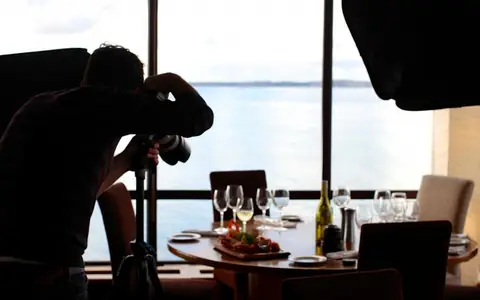
In a digital menu, a photo sells more than a product description. But photos taken in poor light, from different angles and on different plates make the menu look messy. The best result comes from a shoot day when all products are photographed in the same light and from the same angle.
If you have the budget and time, a professional product photography shoot gives the whole menu a consistent look. If you will shoot with your own means, use window light, a plain surface and the same set of plates; you can find practical tips in our article on how to take food photos.
- Shoot in daylight, without flash.
- Prepare plates as they are served; do not exaggerate the portion.
- Shoot in a square or landscape ratio, with the same framing.
- Resize and compress the photos before uploading.
5. Prepare the Translations
Multilingual support is more than machine-translating product names. The names of regional dishes are often not translated; instead, a short description is added next to the name. For example, the name of a regional dessert is kept, and underneath it the ingredients and preparation are explained in a few words.
Keeping translations in separate columns for every row of the product list makes importing into the panel easier. Making it a habit to add the translation whenever a new product is added keeps half the menu from staying in one language. If possible, have the translations read by a native speaker of that language; mistakes in the menu language directly reflect the business's level of care in the eyes of international guests, and a small proofreading round removes that risk.
6. Import to the Panel and Choose the Design
The prepared content is entered into the QR menu panel one by one or through bulk import. Aurora's QR menu system offers unlimited products and categories, unlimited languages, multiple currencies, allergen and preparation-time fields, and an Excel import robot in the same panel.
The menu's look should match the business's identity: logo, colors and typeface. Readability comes before aesthetics; a small screen needs adequate text size, clear contrast and comfortably tappable buttons. As an accessibility benchmark, a contrast ratio of at least 4.5:1 between text and background is recommended. For the details of the user experience, see our UI/UX design and mobile-responsive design pages.
7. Print the Table Codes and Test
Table-based codes are required if ordering and waiter calls will be used; if you will only show the menu, a single code is enough. Codes can be printed on a stand fixed to the table, a label or a table mat. A short instruction line next to the code and, if needed, the Wi-Fi details should be added.
- Generate a separate code for each table and match it to the table number.
- Print the code at a sufficient size on a matte surface.
- Test it by scanning with phones of different brands and ages.
- Check the opening speed on mobile data and on Wi-Fi.
- Verify the flow by sending a test order and a waiter call.
- Show the staff how to use the panel and the incoming requests.
Keeping the Menu Up to Date After Launch
A QR menu is only worth as much as it is kept current. Deactivating a sold-out product, applying a price change the same day and adding seasonal products on time should become a routine. The panel's reports can also be used to simplify the menu by showing which products attract interest.
It is also important that the menu matches the business's website and Google profile; seeing one price on the site and another at the table shakes trust. We explained how the menu fits into the site in our restaurant website article. A brand management approach guides you in keeping the logo and colors used in the menu consistent across all channels.
Frequently Asked Questions
01Can I make a QR menu with a free code generator?
Free generators turn a link into a QR code, but they do not offer menu management. In some free services, the address the code points to may also not be under your control; if the link changes, printed codes stop working.
02How many product photos are needed?
Ideally one photo for each product, but at the start it is enough to begin with the best-selling and highest-margin products. Products without photos can be shown with a simple card.
03Who should make menu changes?
The right to update the menu should be limited to one or two people. In panels where everyone can edit, inconsistencies in prices and names grow quickly.
Making a QR menu is completed in a few steps with a well-prepared product list, consistent photos, clear categories and correctly printed table codes. To carry out these steps together with your business, you can explore our QR menu system and our other restaurant and tourism solutions.